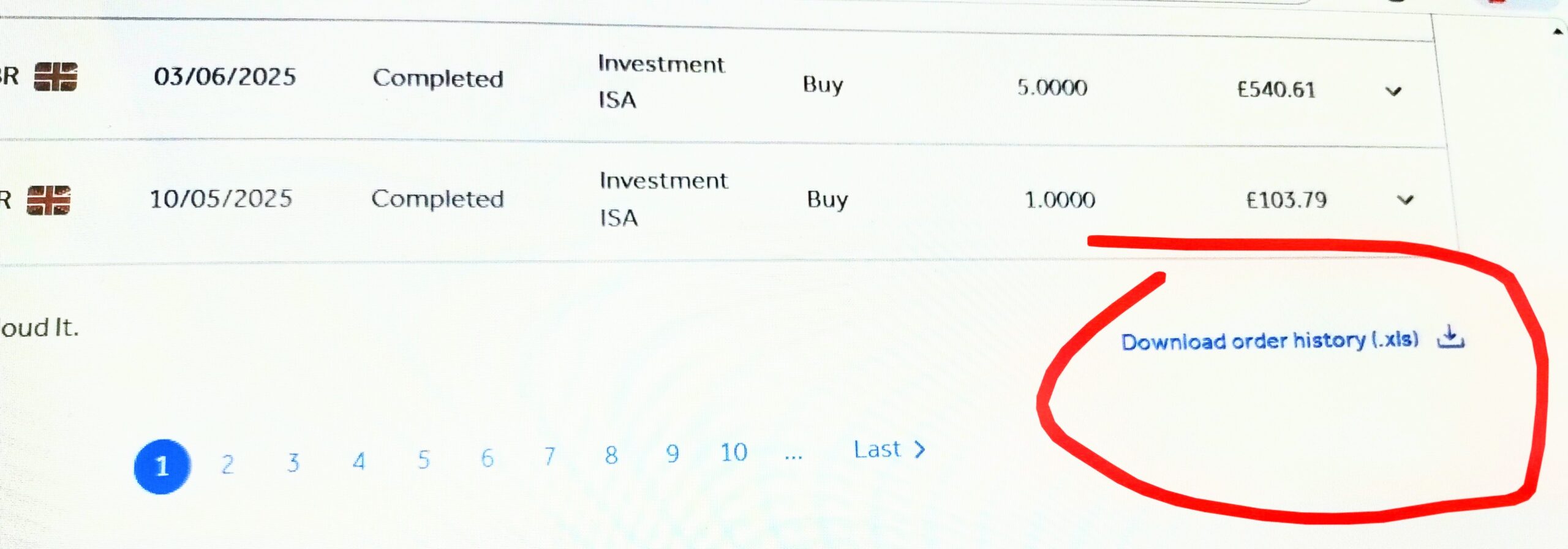
use .CSV format – The downloaded Barclays .xls file must first be loaded into Excel and saved as a .csv file (use the first Save As .csv option in the Excel Save As list – do not use MSDOS or any other .csv save options). The example shows an ISA account but you would only need to download data for your GIA.
NOTE: The Barclays report does not give a ticker symbol, so a pseudo-ticker is made up from the Barclays Description by UKCGT. This means that if you also load the Barclays trade csv and other brokers csvs, some share tickers may not match unless you carefully edit the Barclays tickers in the Trades list before pressing Calculate, e.g.
S 21/06/2021 TESCO-1361435820 657 2.2805631659 0 0 < – Barclays sell
B 22/06/2021 TSCO 100 2.2805631659 0 0 <- Trading 212 buy
You should change all Barclays tickers to match the Trading 212 ticker because they are the same shares. i.e. change all instances of TESCO-1361435820 to TSCO. UKCGT will try to identfy the correct share ticker – but it may not always be successful. There is also a ‘Convert to tickers’ button if you paste in any Trades which contain descriptive names instead of tickers.
Example .csv after saving a barclays as a .csv within Excel and before loading into UKCGT…
ID1426854-002 (Investment ISA),,,,,,,
,,,,,,,
Investment,Date,Order Status,Account,Buy/Sell,Quantity,Cost/Proceeds,Country
Tesco PLC ORD 6 1/3P,06/10/2025,Completed,Investment ISA,Buy,31,145.90 ,GBR
Ishares V Public Limited Company ISHRS S&P 500 INF TECH SECT ETF USD ACC,16/09/2025,Completed,Investment ISA,Buy,50,”1,476.90 “,GBR
Berkeley Group Holdings (The) PLC ORD 5.6110477936P,16/09/2025,Completed,Investment ISA,Sell,40,”1,450.73 “,GBR
Artemis Global Income I Acc,18/08/2025,Completed,Investment ISA,Buy,3354.526,”10,500.00 “,NotSpecified
Royal London Global Equity Select M Acc,15/08/2025,Completed,Investment ISA,Sell,3552.1641,”10,525.07 “,NotSpecified
Ishares V Public Limited Company ISHRS S&P 500 INF TECH SECT ETF USD ACC,10/07/2025,Completed,Investment ISA,Buy,18,496.64 ,GBR
Astrazeneca PLC ORD SHS $0.25,03/06/2025,Completed,Investment ISA,Buy,5,540.61 ,GBR
Astrazeneca PLC ORD SHS $0.25,10/05/2025,Completed,Investment ISA,Buy,1,103.79 ,GBR
Astrazeneca PLC ORD SHS $0.25,30/01/2025,Completed,Investment ISA,Buy,3,345.09 ,GBR